A florist I know once sent me a screenshot of her product page and asked why customers kept leaving before the peonies loaded. The photos were gorgeous. They were also 6 MB each, and there were nine of them on a single page. On a phone with average cell service, the bouquet was basically invisible for six seconds. Flowers are visual products, so the instinct is to upload the biggest, richest image possible. In WooCommerce, that instinct quietly costs you sales and search visibility.
Here is how to keep bouquet photos lush while the store stays fast. Everything below applies to WooCommerce on a typical WordPress setup in 2026.
Why bouquet photos are harder to compress than most products
A bouquet is a nightmare for compression algorithms. Think about the details: thousands of petal edges, soft gradients in blush and coral tones, lacy greenery, and often a blurred background full of fine texture. Aggressive compression turns those subtle gradients into blotchy bands, and a dusty-rose ranunculus starts to look like a smudge.
So the goal is not “make files as small as possible.” It is “make them as small as possible before a human notices.” That distinction shapes every decision below.
Start before you upload: shoot and export with intent
Resize to what the layout actually uses
Check your theme’s largest displayed product image. Most themes show the main photo at roughly 800–1200 pixels wide. Uploading a 5000-pixel original from a mirrorless camera adds nothing but weight. A practical export size for the main image is 1600 px on the long edge, which leaves room for zoom and high-density screens.
Choose the right format
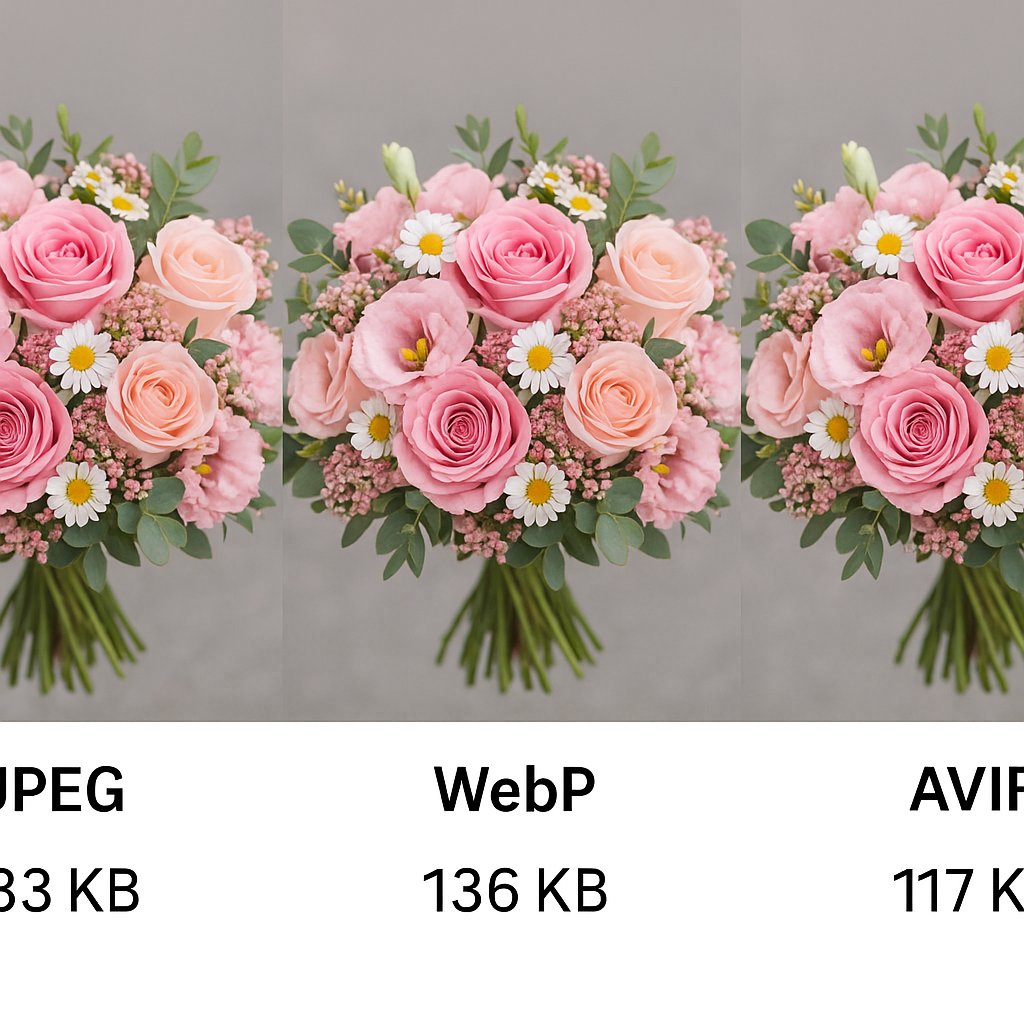
- WebP: a safe default. Supported by every major browser, and usually 25–35% smaller than JPEG at similar quality.
- AVIF: often smaller still, and it handles smooth color gradients well, which suits petals. Encoding is slower, and some older plugins handle it poorly, so test before converting the whole catalog.
- JPEG: keep it as a fallback, not as the primary format.
- PNG: avoid for photos. Reserve it for logos or graphics with transparency.
Pick quality settings by eye, not by rule
For WebP, a quality of 75–82 usually looks clean for flowers. For AVIF, try the 55–65 range. Zoom to 100% on a soft pink petal and on the background blur. If you see banding or crunchy edges, go up a notch. If you can’t tell the difference from the original, go down one.
Let WooCommerce and WordPress do the heavy lifting
Responsive images and thumbnail sizes
WordPress generates multiple sizes of every upload and serves them through srcset. This only helps if the sizes match your theme. Open the WooCommerce image settings and your theme’s documentation, then remove unused sizes that plugins registered over the years. Then regenerate thumbnails so old uploads match the new rules. I have seen stores carrying eleven sizes per image when only three were ever displayed.
Lazy loading, with one important exception
Native lazy loading is on by default in WordPress, and it is great for gallery thumbnails and product grids. But never lazy-load the main product image or the first image in a category grid. That image is usually the Largest Contentful Paint element, and delaying it directly hurts Core Web Vitals. Mark it as high priority (fetchpriority="high") and let everything below the fold load lazily.
Set width and height on every image
When a browser doesn’t know an image’s dimensions, the page jumps as photos arrive. That layout shift is irritating on a product page, where a shopper may be about to tap “Add to cart” when the button slides away. Modern WordPress adds dimensions automatically, but custom themes and page builders sometimes strip them. Check your source.
Automate it so it survives busy seasons
Floral stores are seasonal. Valentine’s Day and Mother’s Day bring dozens of new arrangements uploaded in a rush, often by several people. Manual optimization breaks down exactly when traffic peaks. A reliable workflow looks like this:
- Set a photo standard: dimensions, format, and a naming pattern such as
pink-peony-bouquet-front.webp. - Use an image optimization plugin or a server-side service that converts to WebP or AVIF on upload and keeps originals as backup.
- Serve images through a CDN so a shopper in Denver and one in Atlanta both get nearby delivery.
- Add descriptive alt text. It helps accessibility and image search, and it takes ten seconds per photo.
- Re-test the top five product pages after every big upload batch.
By the way, watch out for product galleries with many angles. Five well-chosen photos usually beat fifteen near-duplicates. Each extra image is another request, and shoppers rarely look past the fourth.
How to know it worked
Run your best-selling bouquet page through PageSpeed Insights and WebPageTest on a simulated mid-range mobile connection. Look at Largest Contentful Paint (aim for under 2.5 seconds), total page weight, and layout shift. Then compare before and after. In my experience, moving a typical product page from 4–5 MB of images to under 1 MB is realistic without any visible loss in quality.
Small changes, noticeably faster petals
Fast bouquet photos come down to a few habits: export at sensible dimensions, use WebP or AVIF, judge quality with your own eyes, load the hero image eagerly and everything else lazily, and automate the routine. Start with one product page, measure it, and apply what you learn to the rest of the catalog. If you want to go deeper, explore Core Web Vitals documentation and your hosting provider’s image and caching options – that is where the next round of gains usually hides.