A few years ago I rebuilt a small botanical garden’s website around a photo of their spring peonies. The mockup was gorgeous: blush pink, dusty rose, a bit of leafy green. Then I ran the text through a contrast checker. Nearly every pairing failed. The pretty pink headline was almost invisible on the cream background, and the “Buy tickets” button looked like a smudge.
That’s the central tension of flower-inspired design. Petals are soft, translucent and low in contrast, because they evolved to attract pollinators, not to pass WCAG. The good news is that you can keep the mood of a bloom and still build a theme that works for people with low vision, color blindness or just a sunlit phone screen. Here’s how I approach it.
Start with a bloom, not a swatch
Pick one flower and study it the way a painter would. Look at a real photo, ideally taken in natural light, and note that a flower is never one color. A lavender sprig has violet buds, gray-green stems and silvery leaves. A poppy has scarlet petals, a near-black center and a pale green bud.
Use a color picker to pull five to seven samples and sort them by role:
- The star: the petal color everyone remembers. This becomes your accent or brand color.
- The anchor: the darkest tone, such as the center of an anemone or a deep stem shadow. This is your text color.
- The air: the lightest tint, such as a pale petal edge or a cream highlight. This is your background.
- The supporting cast: foliage greens, a secondary petal shade, a bit of pollen yellow. These handle borders, tags and illustrations.
Notice that the anchor and the air come from the same flower. That’s what keeps a high-contrast theme from feeling clinical.
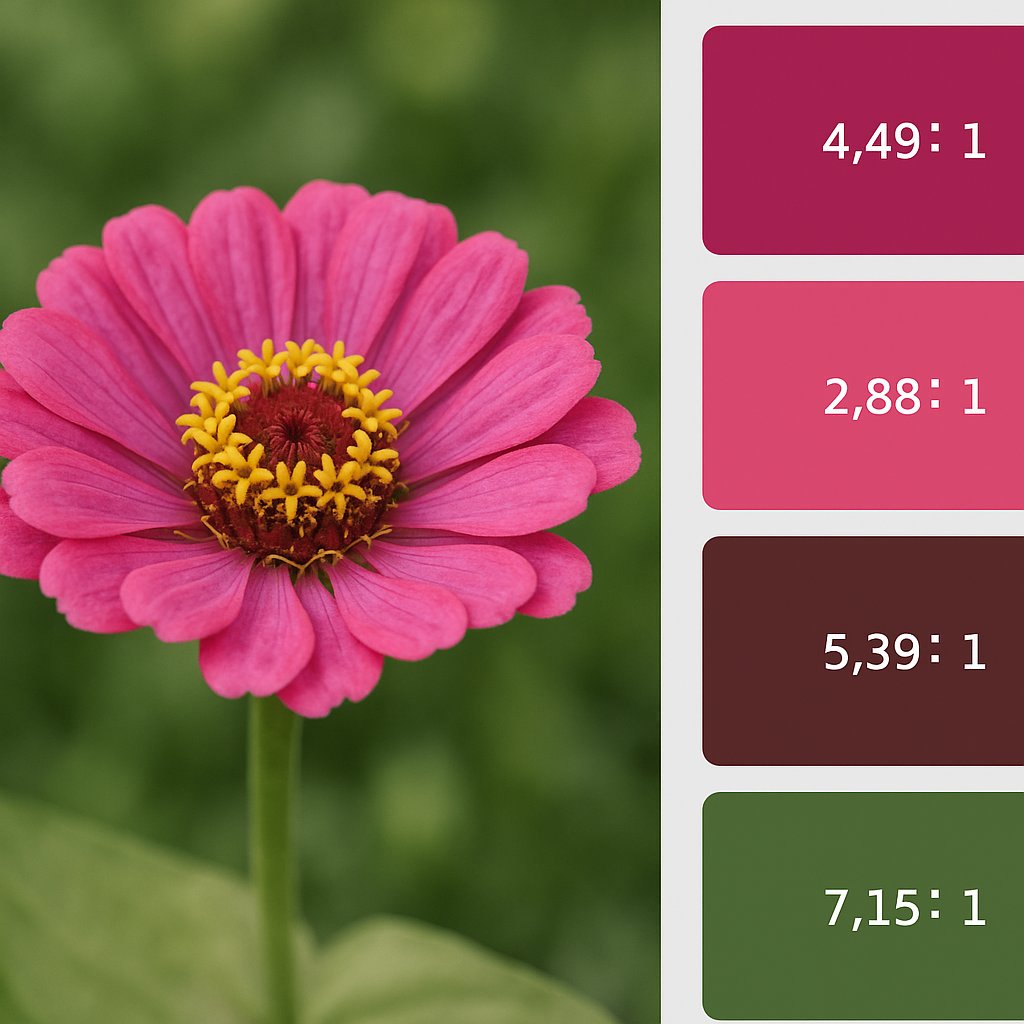
Where petal colors break accessibility
WCAG 2.2, still the standard most US legal and procurement requirements point to in 2026, asks for a contrast ratio of at least 4.5:1 for normal text and 3:1 for large text and interface components like buttons, input borders and focus rings. Many flower colors land in the gap between those two numbers.
| Bloom color | Example hex on white | Approx. contrast | Safe use |
|---|---|---|---|
| Poppy red | #E8452C | 3.9:1 | Large headings, icons only |
| Deepened poppy | #B8321D | 6:1 | Body links, buttons |
| Sunflower yellow | #F5B700 | 1.8:1 | Background only, with dark text |
| Iris purple | #6B3FA0 | 7.4:1 | Text, links, buttons |
Sunflower yellow is the classic trap. As text on white it’s nearly unreadable. But flip it: dark brown #2B2118 on that same yellow reaches roughly 8.7:1. Same flower, opposite role, and suddenly it works.
The “one step darker” rule
When a petal color fails, don’t abandon it. Darken it in small steps, using HSL or OKLCH so the hue stays put, until it clears 4.5:1. The poppy example above shifted only a little and still reads as poppy. Keep the original bright shade for large illustrations, hero backgrounds and decorative shapes, where contrast rules don’t apply to the same degree.
Building the theme in layers
Here’s the process I follow once the raw colors are in hand.
- Set the text pair first. Choose your anchor and air colors and aim for 10:1 or better for body copy. Pure black on pure white can feel harsh, so a deep plum or forest green on a warm off-white is friendlier.
- Define one accessible accent. Take the star color, darken it until it hits at least 4.5:1 against your background, and use it for links and primary buttons.
- Create tints for surfaces. Cards, banners and table stripes can use very light petal tints. Check that text on them still passes.
- Add a distinct focus style. A 2–3px outline in a contrasting tone, at least 3:1 against both the button and the page, helps keyboard users far more than a subtle glow.
- Store everything as design tokens. Name colors by role (
--color-text,--color-accent,--color-surface) rather than by flower. It makes dark mode far easier.
Don’t let color carry the message alone
Red-green flower pairings are tempting, and they’re exactly what many people with color vision deficiency can’t separate. About 8% of men have some form of it. Back up color with something else: an underline on links, an icon next to error messages, a pattern or label in charts. If your form turns the border poppy red for an error, add the words “Enter a valid email” as well.
Dark mode: the night garden
Many blooms look dramatic at dusk, and that’s a useful model for dark themes. Use a deep, desaturated background drawn from foliage or a dark petal, such as #1C1B22 or #14211B, instead of pure black. Then lighten your accents. Iris purple that worked on white will look muddy on dark, so shift it to something like #C4A7F0. Test the pairs again, since contrast doesn’t carry over automatically.
One quirk I see often: saturated colors “vibrate” on dark backgrounds. Pull the saturation down 10–20% and the page becomes calmer and easier to read.
Testing before you fall in love
Run a quick routine on every palette:
- Check each text and background pair with a contrast checker, including hover and disabled states.
- Use a color blindness simulator to view the design as protanopia, deuteranopia and tritanopia.
- Switch to grayscale. If hierarchy disappears, the design leans on hue too much.
- Look at it outdoors on a phone. Glare is the harshest test most people will ever give your site.
Keep an eye on the APCA contrast model, which is being explored for WCAG 3. It judges text by size and weight, and it tends to be more forgiving of dark-on-light pairs and stricter on thin light text. For now, WCAG 2.2 ratios remain the compliance baseline, but APCA is a handy second opinion.
Your next step
Pick one flower from your own garden, a bouquet or a walk this weekend. Take a photo, extract five colors, and see which ones survive a contrast check. You’ll probably lose the prettiest pink and gain a surprisingly good plum, and that trade is usually worth it. Accessibility doesn’t dilute a floral palette. It pushes you to find the strong, deep notes in the flower that you may have overlooked.